
Installing
1. Even though Windows might be 64 bit, Excel could still either be 32 or 64 bit. Please can you check
a. Excel 2013/2016/365:
b. Excel 2010: File / Help / About Microsoft Excel
2. Look at
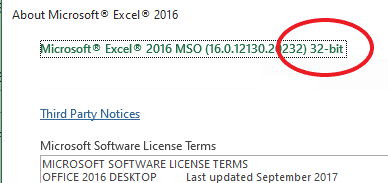
3. Then download the relevant Excel Add In via these links
- https://www.sequentialit.com/downloads/SequentialIT_Excel_5.0.0.7_32bit.msi
- https://www.sequentialit.com/downloads/SequentialIT_Excel_5.0.0.7_64bit.msi
4. Once Installed, you will need to set up a Login Token. This is done by
4.1. From the AddIn Tab in Excel, Select Sequential, then Console
4.2. Select “Excel Utils” and then click on the “Connections Tab”
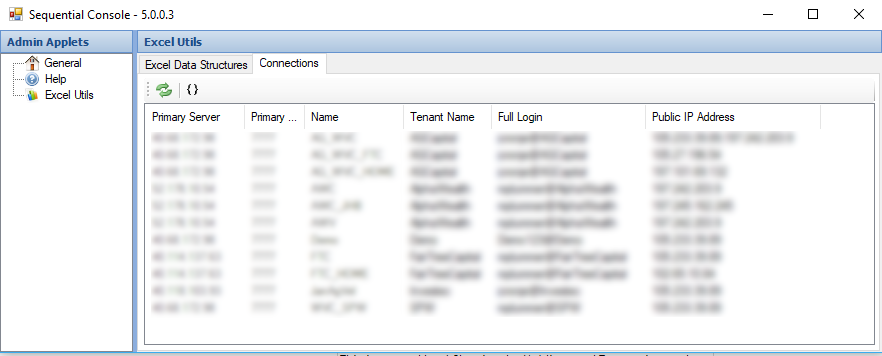
4.3. Click Add:

You will See This:
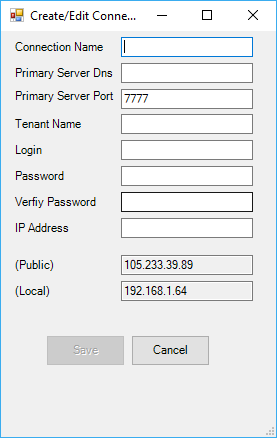
You will be sent the values to fill in
4.4. Click Save
TROUBLESHOOTING
Q: The Function returns #NAME?
A: The Add-In is either not installed, has been corrupted, or has been installed as 32bit against 64bit Excel or vice versa
To Repair the Add-in
- Go tothe Control Panel \ Programs and Features \ Add or Remove Programs
- Right Click the “Sequential IT Excel Add In” and select “Repair”
- (If you have installed the 32Bit Add In on 64-bit Excel or Vice Versa, select “Uninstall” and follow the installation instructions above)
Q: The function’s taget cell returns a #ERROR: message
A: These are message specific. Common meesages (and their remedies) are below
The message:
- “Cannot find user with login WINDOWS_DOMAIN\WINDOWS_USER”
usually means that there is either a rogue excel process, or that the current one has become corrupted. Please close all instances of excel from the Task Manager (details tab) and re-open Excel.
- Invalid Security Token
usually means that your public IP address has changed. It could also mean that your token has expired.
In Excel, go to AddIns/Sequential/Console/Excel Utils/Connection then double click your connection and check the Public IP address.
If the public IP in brackets (your current public IP address) differs from the saved Public IP address, then your token will no longer validate.
Please change your public IP address to that of the one in brackets (you may enter more than one IP address if your provider has a DR and LIVE one – simply separate them by a comma), re-enter your password, and click OK
If your token has expired, simply retype your password and click OK
- Unable to establish/re-establish a connection …
This means that there is no underlying connection between your PC and the server. This has nothing to do with the Add-In and common reasons are:
- You have no internet connectivity
- Your network provider has prevented outbound connections
- Your public IP address has changed to an unrecognized one (are you working from home with a dynamic IP and/or have not connected to your company VPN?